

Statistically speaking, there’s a pretty good chance that you use Microsoft Office 365 in your business, which means you can use OneDrive, Microsoft’s contribution to cloud-based storage and collaboration. If this is how your users work productively, they are probably already familiar with how they can share these documents – but what if there are some things you don’t want freely shared around? Today, we’re going over how you can restrict OneDrive sharing capabilities.
Microsoft makes file and folder sharing in OneDrive pretty easy – log in, right-click the file/folder, and click Share.
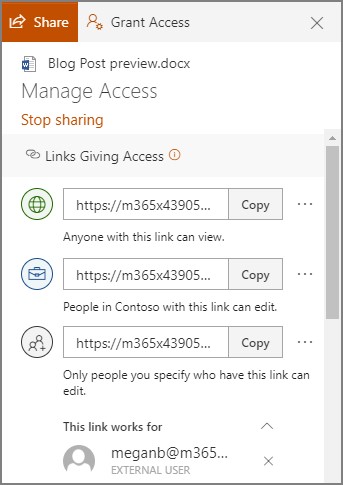
This enables a user to share content with their contacts, an email address, or obtain a copy of a shareable link that brings the user accessing it to the content. By default, this allows access to edit the content, but this can be adjusted to read-only.
This is extremely useful when sharing files on an individual basis, but do you really want to monitor your team (or, in other words, babysit them) to ensure that they are only using this capability to send content to those authorized to access it? Probably not, which is why it is nice that OneDrive has global settings that authorize an administrator to go further than individual file and folder permissions to control a user’s sharing capabilities.
Limiting OneDrive File Sharing for a User
Using your admin access over your organization’s OneDrive, visit https://admin.microsoft.com/ and sign in. Once you’ve done so:
- Find Admin centers on the left side of your screen. Click SharePoint.
- This should bring you to the new SharePoint admin center. If it is still the old one, go to the new version by clicking on Open it now.
- One the left side of your screen, locate Policies and select Sharing.
This gives you access to the global settings, which will apply any changes you make to all accounts. To be more granular, and edit individual user settings, access Users, Active Users, and finally, the one you want to grant or rescind privileges from. You should see a tab labeled OneDrive, under which you’ll find Sharing options.
The privacy and security of your data is important – so make sure you have tight control over your company’s data and information. Macatawa Technologies is here to lend a hand. To speak to one of our professionals, give us a call at 616-394-4940.