

Your Microsoft Login is Changing – Here’s What to Do
Starting September 1, 2026, Microsoft is making Passkeys the default sign-in method. SMS/Voice authentication will be fully retired by February 1, 2027.
What Are Passkeys?
You’re probably familiar with the evolution of logging into accounts – from simple passwords to MFA text codes, to authenticator apps, to one-time passcodes sent to your email or phone. But with each new method, security threats became more sophisticated, as attackers found new ways to steal, guess, or intercept your credentials.
Passkeys are the next step in that evolution. They are phishing resistant credentials to replace ‘phishable’ methods such as passwords, SMS codes, and software/email one-time passcodes.
What is Changing?
SMS Multi-factor Authentication is retiring and Passkeys are becoming the default sign-in method to signing into your Microsoft account. If your organization relies on text or call based multi-factor authentication, you have a few different options moving forward. There’s no opt-out from the final deadline but below we break down the timeline and how to choose the right path for your organization.
Why is this Changing?
SMS and voice are among the most vulnerable authentication methods available today. They provide significantly weaker protection against phishing, SIM-swap, and replay attacks than Passkeys, and Microsoft no longer considers them secure authentication methods. To help organizations improve their security posture, Microsoft is making Passkeys the standard sign-in experience. Moving to phishing-resistant methods gives your organization stronger protection out of the box, without relying on users to opt in.
What You Need To Do
Start planning now. Review the Passkey options below and choose the one that fits best with how you use your devices and how you sign into your accounts.
How to Setup Your Passkey
Go to https://aka.ms/mfasetup you can see all your existing login options. Ensure it says passkey (even if it says Microsoft Authenticator). If you see at least one option saying Passkey then you are all set!
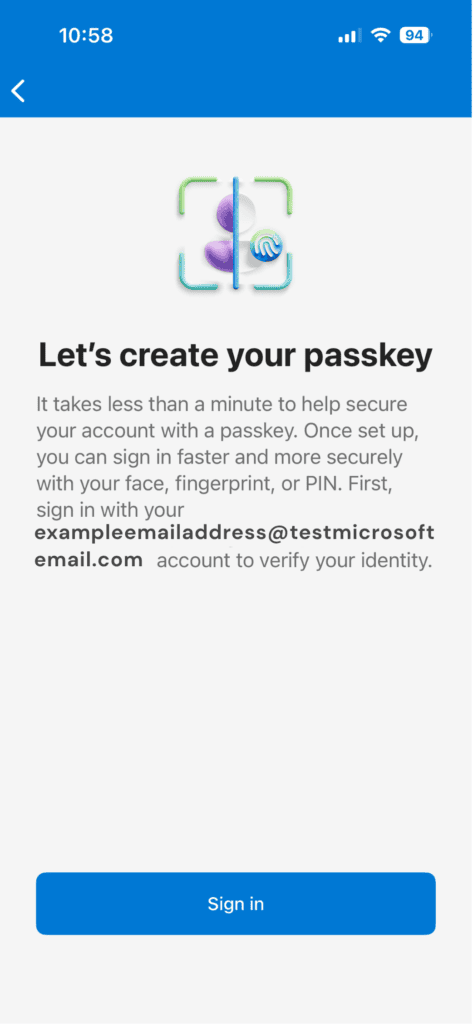
Even if you don’t use SMS Multi-factor Authentication, you will begin seeing prompts to add Passkeys beginning in September. If prompted, follow the steps to register your passkey.
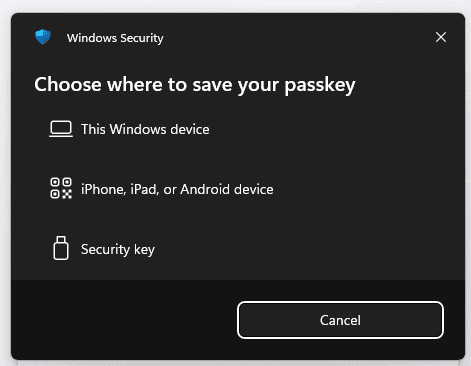
The prompts will look like this:
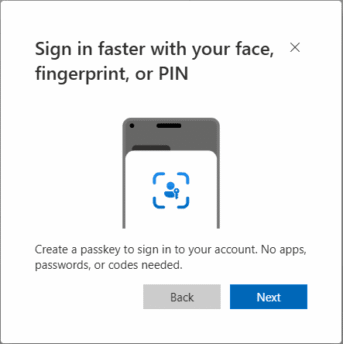
If you’re not prompted, go to https://aka.ms/mfasetup and follow the steps below:
Select ‘Add sign-in method’
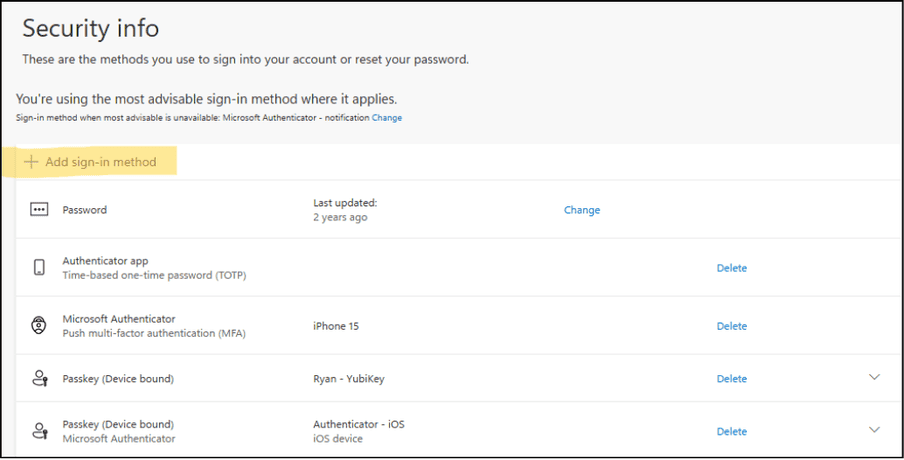
Microsoft supports a few different types of Passkeys:
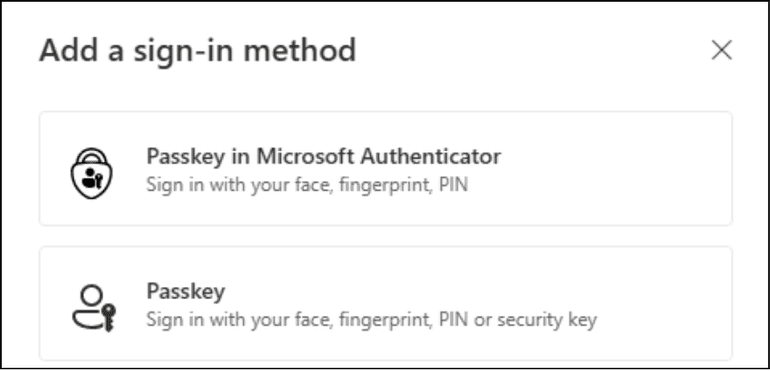
Choose Your Passkey Option
Our recommendation is also the simplest option as most users already have the Microsoft Authenticator app on their phone.
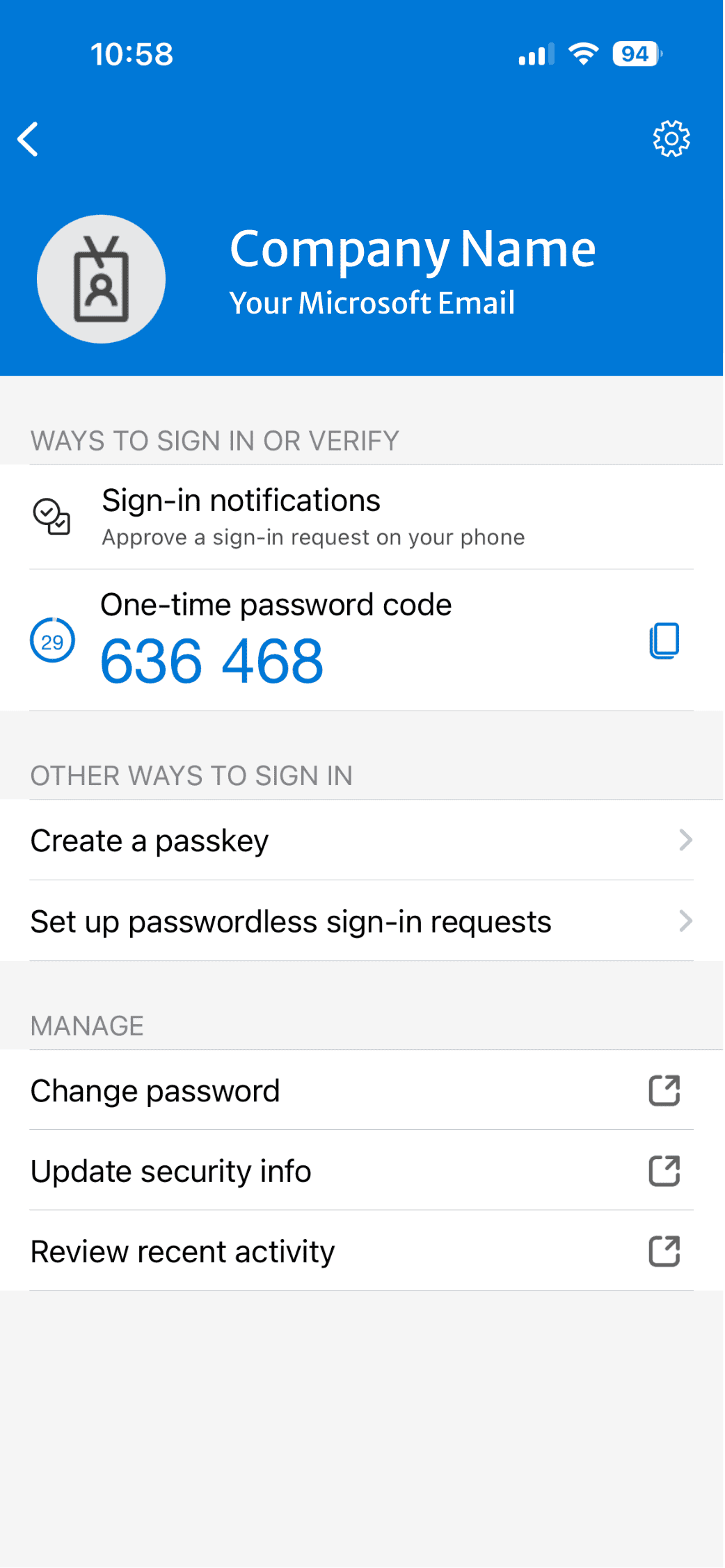
Instead of approving sign-in requests or using one-time codes users can add a Passkey by going to the Microsoft Authenticator app.
Even if you already use the Microsoft Authenticator App you must create a passkey
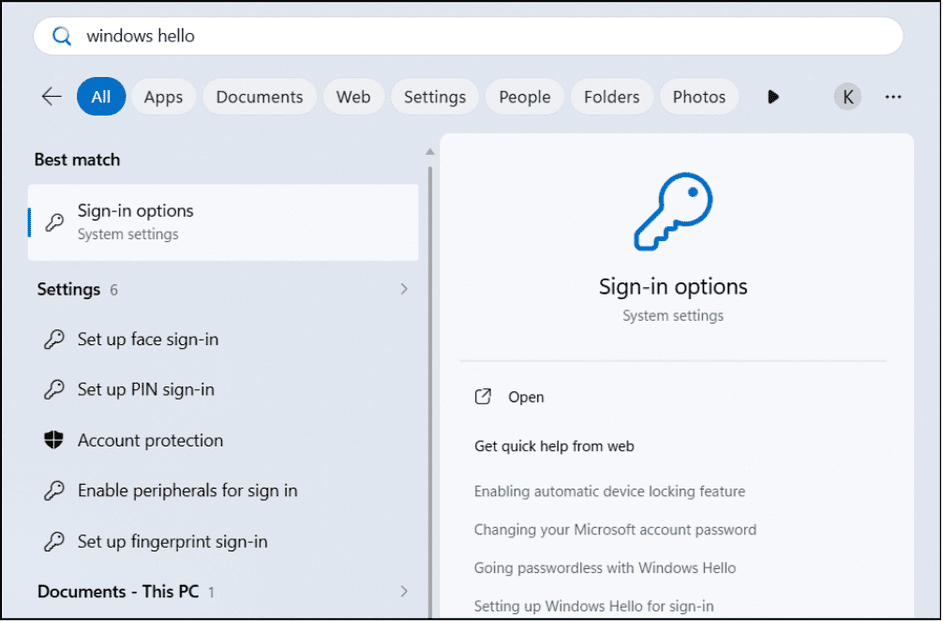
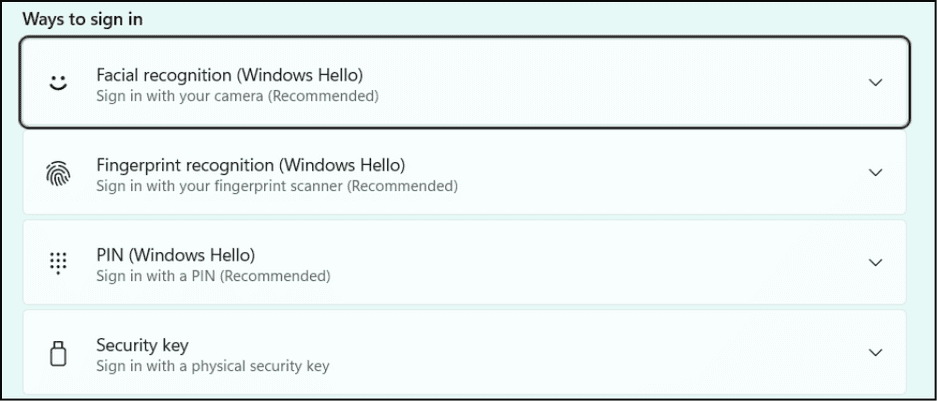
If you primarily use a windows computer, you can setup a biometric (fingerprint or face ID), pin, or hardware Passkey to unlock your computer that then you can pass through a Passkey to Outlook, OneDrive, your browser, etc.
Search ‘Windows Hello’ in your taskbar and select “Sign-in options.”
Then select one of the following options:
A lot like Microsoft Authenticator, a third-party software Passkey can be set up on your phone or password manager. (ex: LastPass, Apple Keychain, Google Authenticator, iCloud Passkeys, etc.)
To start go to https://aka.ms/mfasetup and select “Add sign-in method” from the options
Select “Passkey”
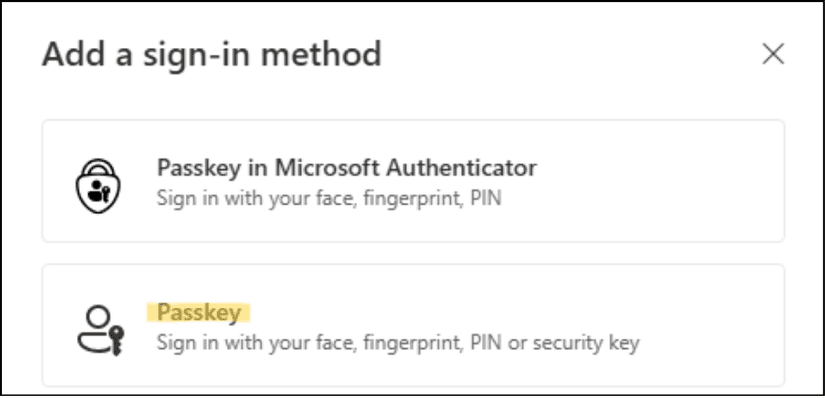
If you have a 3rd party manager connected to your device already, it will direct you to it automatically. If it doesn’t direct you automatically, chose the “iPhone, iPad, or Android device” and follow the steps from Microsoft.
Consult your third-party service on setting up a Passkey if you need assistance.
A hardware token is a physical key that you plug into your computer that only you have the password too.
You can sign in with a code from a physical hardware token
To start go to https://aka.ms/mfasetup and press “Add sign in method” from the options
Select “Passkey”
Then choose “Security Key.”
Consult the hardware tokens guide for initial configuration.
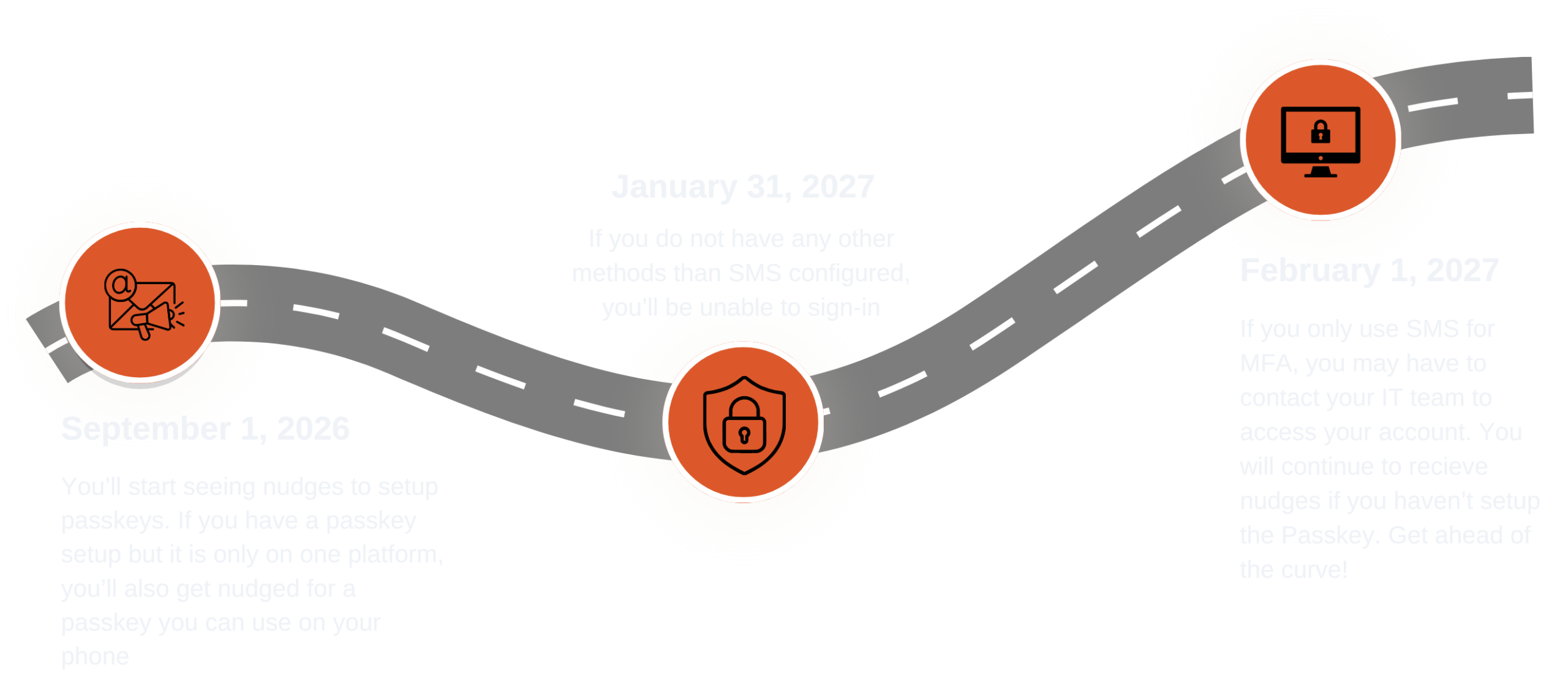
Timeline of When This Happens
The February cutoff isn’t flexible – it’s a hard stop. If SMS is your only backup, you will be locked out. Setting up your Passkey now avoids the last-minute scramble, skips the September nudges, and keeps you in control of how you access your account. The sooner you switch, the smoother the transition will be.
Your Quick Guide to Microsoft Passkeys
Everything your team needs to get set up with Microsoft Passkeys – in one place. Download or print this guide and keep it handy as you make the switch.
Share it with your team so everyone is ready for the September rollout.
Additional Insights & Blogs

Your Employees Are Using AI, Do You Know What They’re Sharing?
Your employees are entering business data in AI tools every day without knowing the risk. Here’s what’s actually at stake, and what to do.

What the CMMC Phase II Suspension Means For Your Business
The DoD just paused CMMC Phase 2, for now. Learn what changed, what didn’t, and what to do next for your business.

The IT Offboarding Checklist Every Business Needs
Don’t skip the IT during employee offboarding. Use this checklist to revoke access, secure your systems, and protect your business.